- Optimizely Feature Experimentation
A flag variation is a reusable group of flag variable values (also called remote feature configuration or remote variables) that let you avoid hard-coding values in your code. Instead of waiting for a deployment, you can group them in a flag variation and then update them remotely in the Optimizely Experimentation application.
Optimizely Feature Experimentation dynamically assigns those variable values to your flag based on your flag rules. For information, see Flag variations.
Create flag variations
You can create flag variations using the Feature Experimentation UI or the Feature Experimentation REST API.
Prerequisite
You must create variables in the flag before assigning them to a variation.
Use the Feature Experimentation UI
- Go to Flags > select a flag.
- Click Variations. Click Add variations.
- Configure the variation.
- Enter a Name.
- Enter a Key. You cannot change the Key after you save the variation.
- (Optional) Enter a Description.
- Configure the Variables for the variation.
- Click Save.

When a flag is created, the default variations, On and Off, are automatically generated.
You cannot delete the Off variation.
Understand the Off variation
In Feature Experimentation, the Off variation is a unique state where you explicitly disable the feature for users. Unlike other variations (such as a, b, c, d) that typically return enabled: true, the Off variation always returns enabled: false.
However, this does not exclude users from tracking. Users assigned to the Off variation are still tracked, which you can verify through the ruleKey in the decision response.
Variation behaviors
Off variation
-
enabledresponse –false - Included in datafile – No
- Access method – REST API only
Baseline (non-Off) variation
-
enabledresponse –true - Included in datafile – Yes
- Access method – Datafile and REST API
The decision.enabled flag does not indicate whether a variation is a baseline. Baselines are not included in the datafile but are accessible through the REST API.
If you do not use the Off variation, decision.enabled always returns true. Conversely, if you assign the Off variation, it returns false.
The Off variation affects tracking and decision responses. Although Off is excluded from the datafile, it remains part of the experiment logic and is accessible through API calls.
Use the Optimizely Feature Experimentation REST API
You can use the Optimizely Feature Experimentation REST API Variation endpoints to manage your variations. See the Create a new Variation endpoint for information.
Brainstorm variation ideas with Optimizely Opal
You can brainstorm with Opal to automatically create variations in Feature Experimentation. But, before doing so, Configure Feature Experimentation for Opal.
To brainstorm with Opal, complete the following steps in Feature Experimentation:
- Go to Flags and select a flag.
-
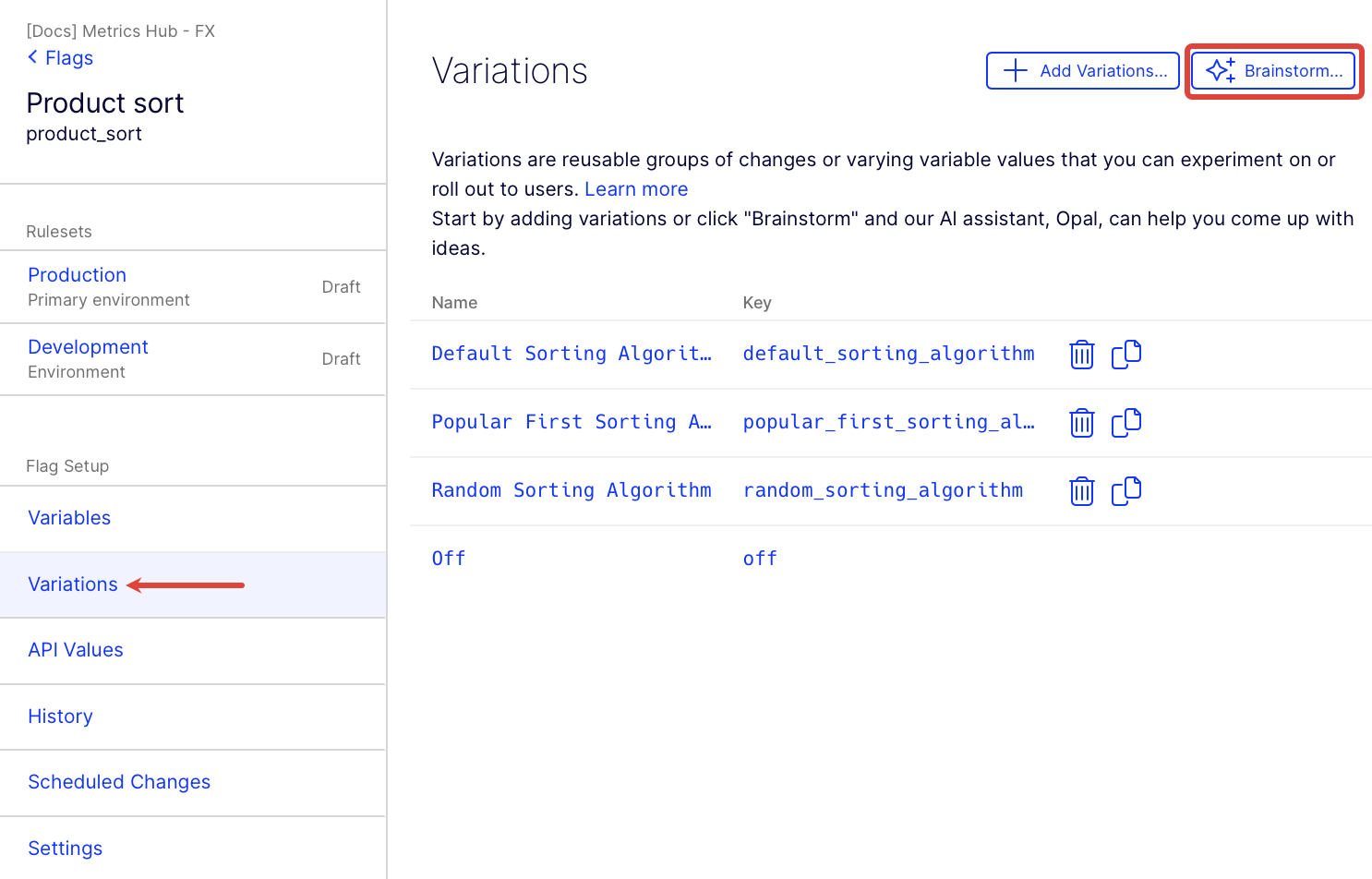
Click Variations and click Brainstorm. This opens Opal Chat.
-
Enter the hypothesis you want to test and click send (or press Enter). Optimizely Opal returns suggestions for variations. See Design an effective hypothesis.
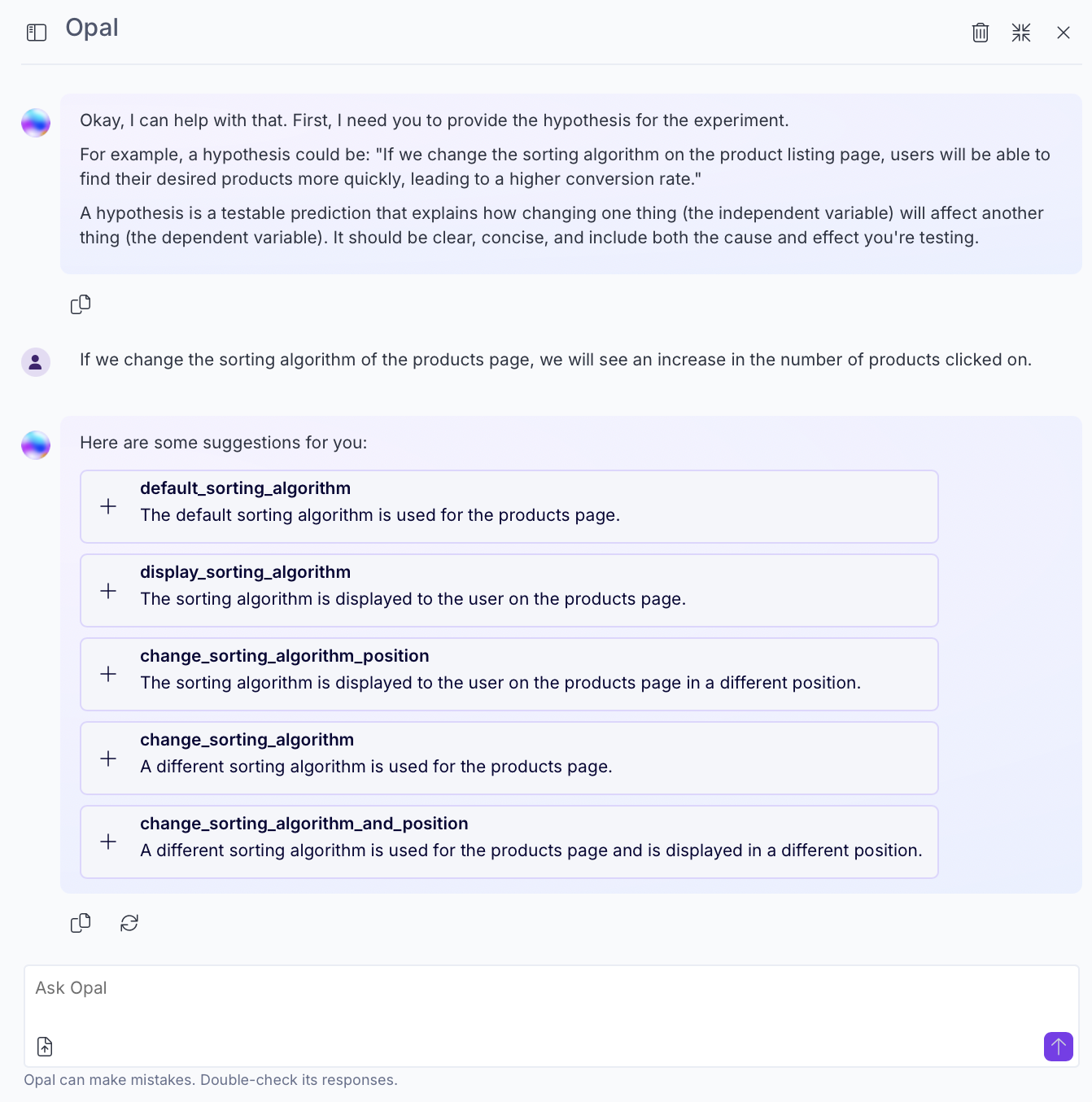
- Click on a variation.
-
Review and update the variation details pre-filled by Optimizely Opal.
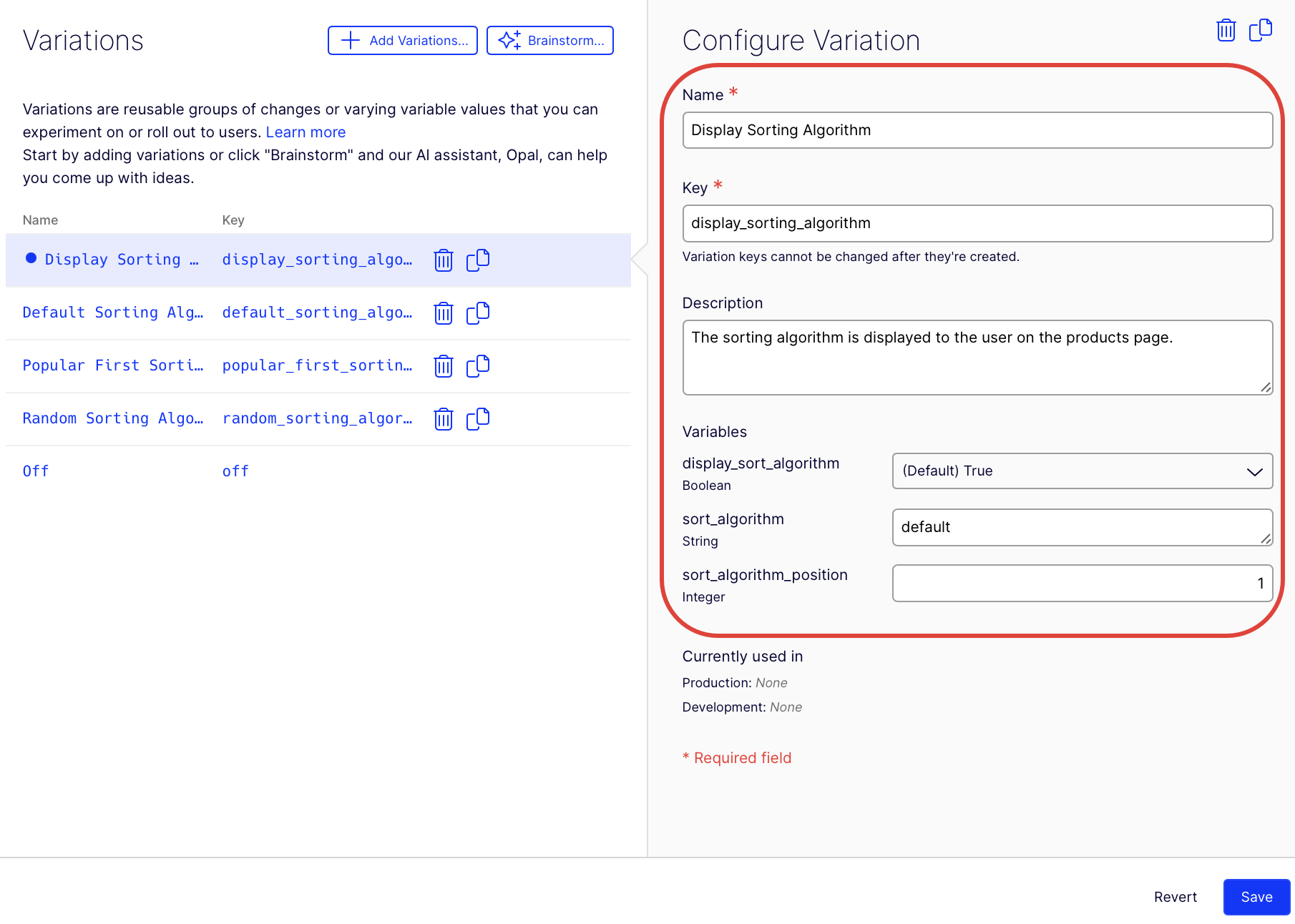
- Click Save to create the variation.
- (Optional) Return to Opal Chat and click on a variation and repeat steps 5 and 6 to create additional variations.
If you use Opti ID, administrators can turn off generative AI in the Opti ID Admin Center. See Turn generative AI off across Optimizely applications.
Implement flag variations
You deliver flag variations through flag rules to control the end-user's experiences. Flag rules can be a targeted delivery, an A/B test, or a Multi-armed bandit optimization.
In the Optimizely Experimentation application, you see flag variations, which let you group and reuse variable values.
In your code implementation, you can use the returned OptimizelyDecision variation key to execute code conditionally. But, to take full advantage of variables, you must get the values of the variation's variables directly.
See the Implement flag variation section in the developer documentation for specific code samples.
Delete variation
To delete a variation, go to Flags > select a flag > Variations. For the variation you want to remove, click Delete variation. Click Save.
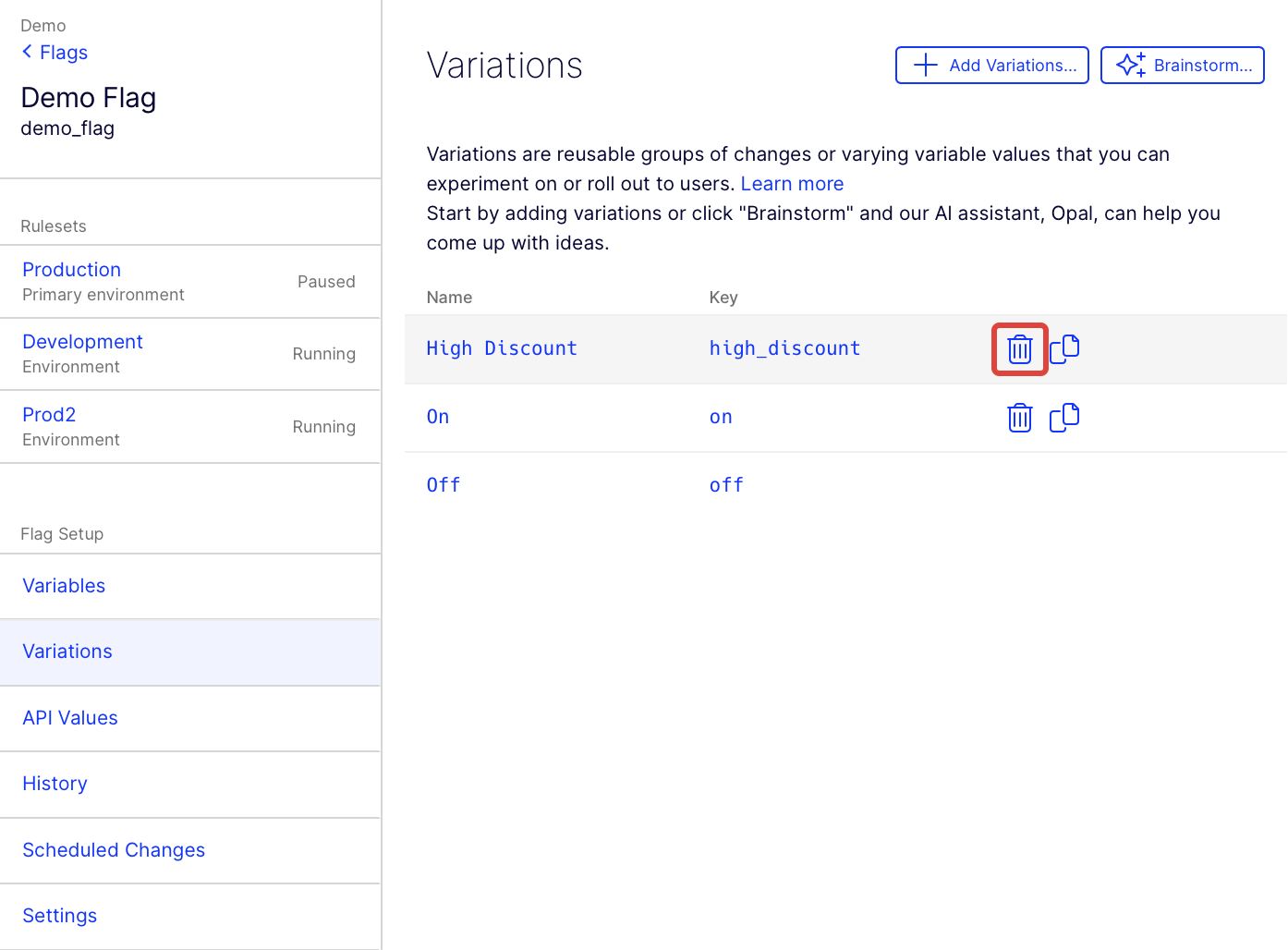
You can also delete a variation by clicking Delete variation on the Configure Variation page. Click Save.
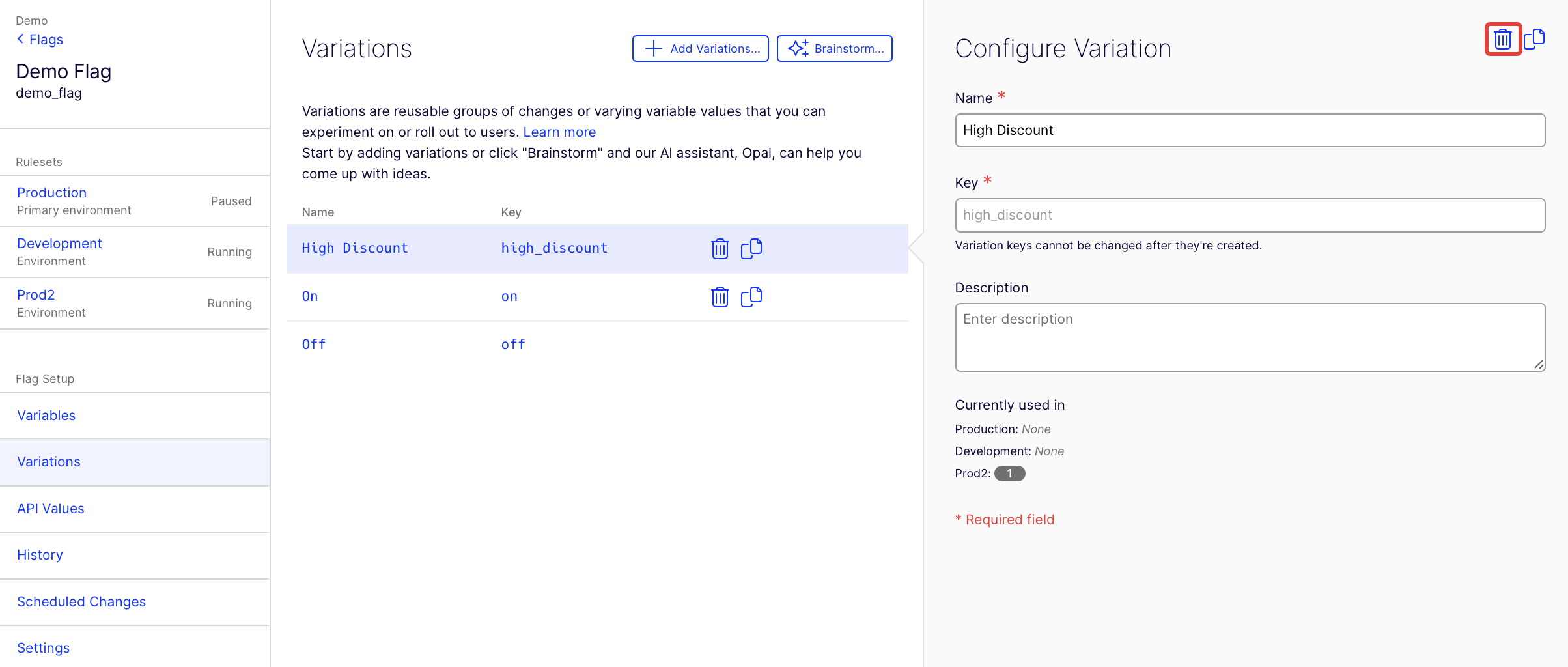
Click Undo on each variation before clicking Save to undo the deletion. You can click Revert to undo all changes.
Article is closed for comments.