- Optimizely Feature Experimentation
Audiences give you control over which users can access your flag rules, for example, A/B tests, targeted deliveries, or multi-armed bandit optimizations.
A single audience is defined based on custom user attributes you create. These can be based on location, device type, subscription plan, and so on. When you call user-based methods like Decide and Track, Optimizely Feature Experimentation determines whether a user qualifies for a flag by evaluating the attributes.
After you create and implement attributes, you can start building audiences. Reuse audiences that you create across multiple flags and rules.
Audience match conditions
Optimizely Feature Experimentation supports several match comparison operations that you can use in audience conditions:
has any value-
String equals,String contains substring-
String equalsis the only match type that is compatible with SDK version releases before March 2019 (pre-3.0.0 releases for most major SDKs). See the SDK Compatibility Matrix.
-
-
Boolean is false,Boolean is true -
Number equals,Number is less than,Number is less than or equal to,Number is greater than,Number is greater than or equal to- For SDK version compatibility with "or equal to" comparisons, see the SDK Compatibility Matrix.
-
Version equals,Version is less than,Version is less than or equal to,Version is greater than,Version is greater than or equal to- See the SDK Compatibility Matrix for SDK version compatibility.
- Use
versionto target audiences based on your application version. You must implement the attribute in your code by passing in your application's semantic version specifications as a string to Optimizely Feature Experimentation.- Pass versions in the format
"major.minor.patch-prerelease+build", wherepatch,prerelease, andbuildare optional. For example, you can pass"3.0"or"1.5.1-beta"or"2.0.5-alpha+001".
- Pass versions in the format
Attributes are not explicitly typed in Feature Experimentation. Pass in values of the correct type and format so your audience conditions evaluate correctly. An attribute value of the incorrect type results in a falsy audience evaluation.
The Edit Audience window lets you define audience conditions by dragging and dropping attributes from the side panel or defining complex JSON objects using the Code Mode window.
Build audiences from attributes
To create audiences from attributes:
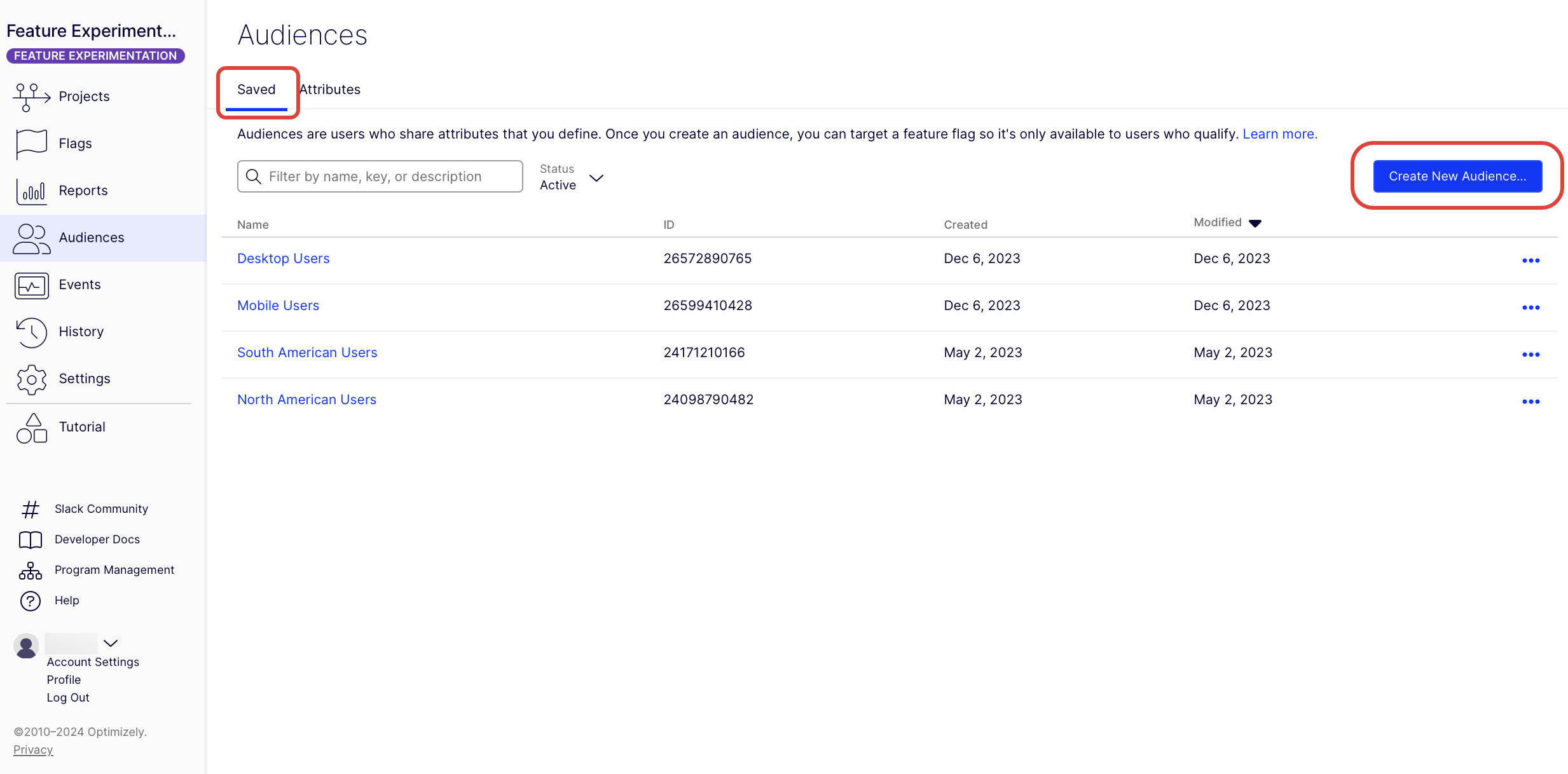
- Go to Audiences > Saved.
- Click Create New Audience.
- Drag and drop your previously created attributes into the Audience Conditions field.
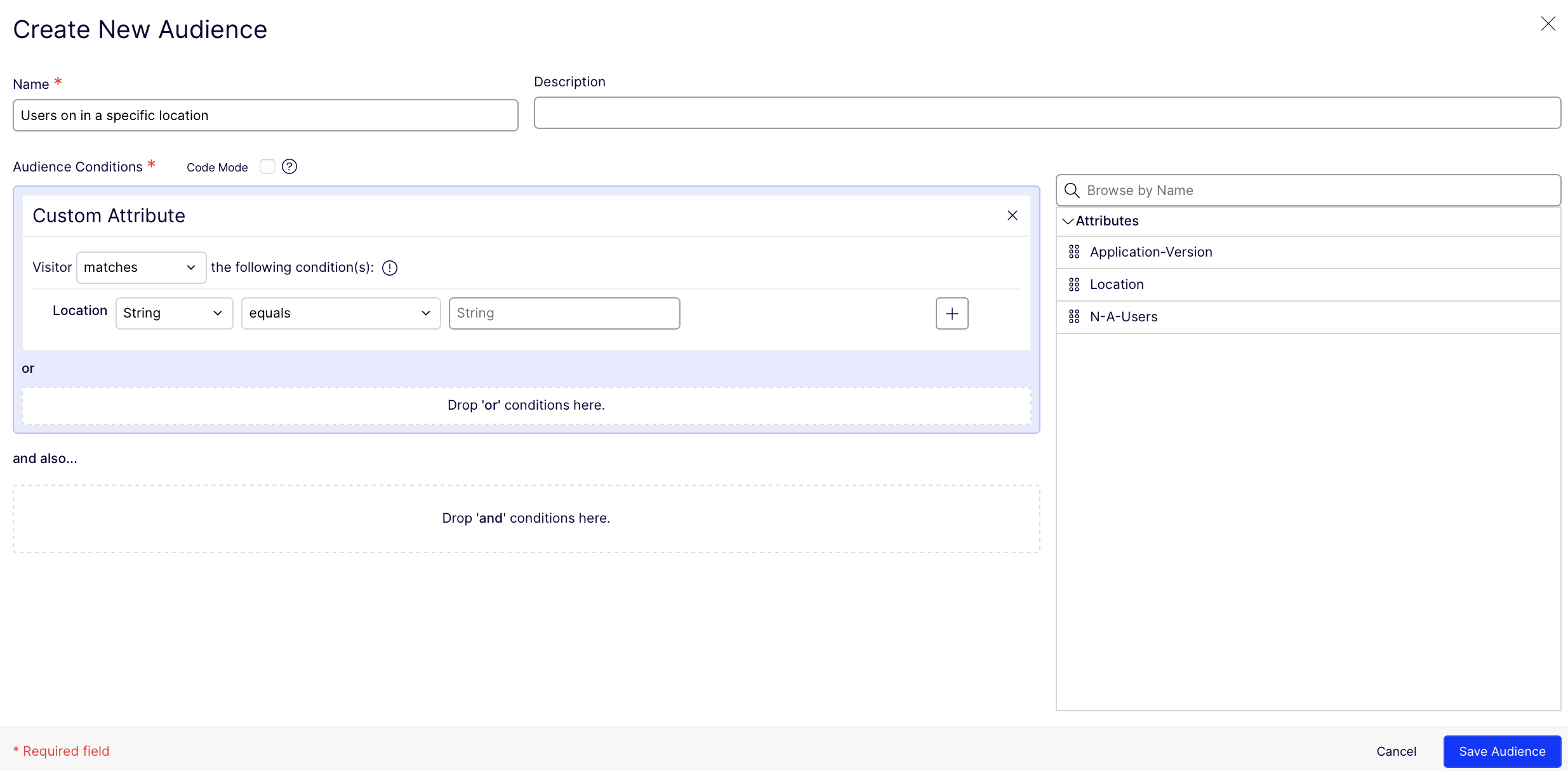
- Select the match condition. See Audience match conditions.
- Add other attributes to create your audience. They can be added as
andororconditions. - Click Save Audience.
When you choose any match type option other than String equals for exact matching, a message displays that the option requires using an SDK version of 3.0.0 or higher for most SDKs. See SDK Compatibility Matrix.
After creating an audience, you can set the target audience or audiences for flag rules.
Create audience combinations
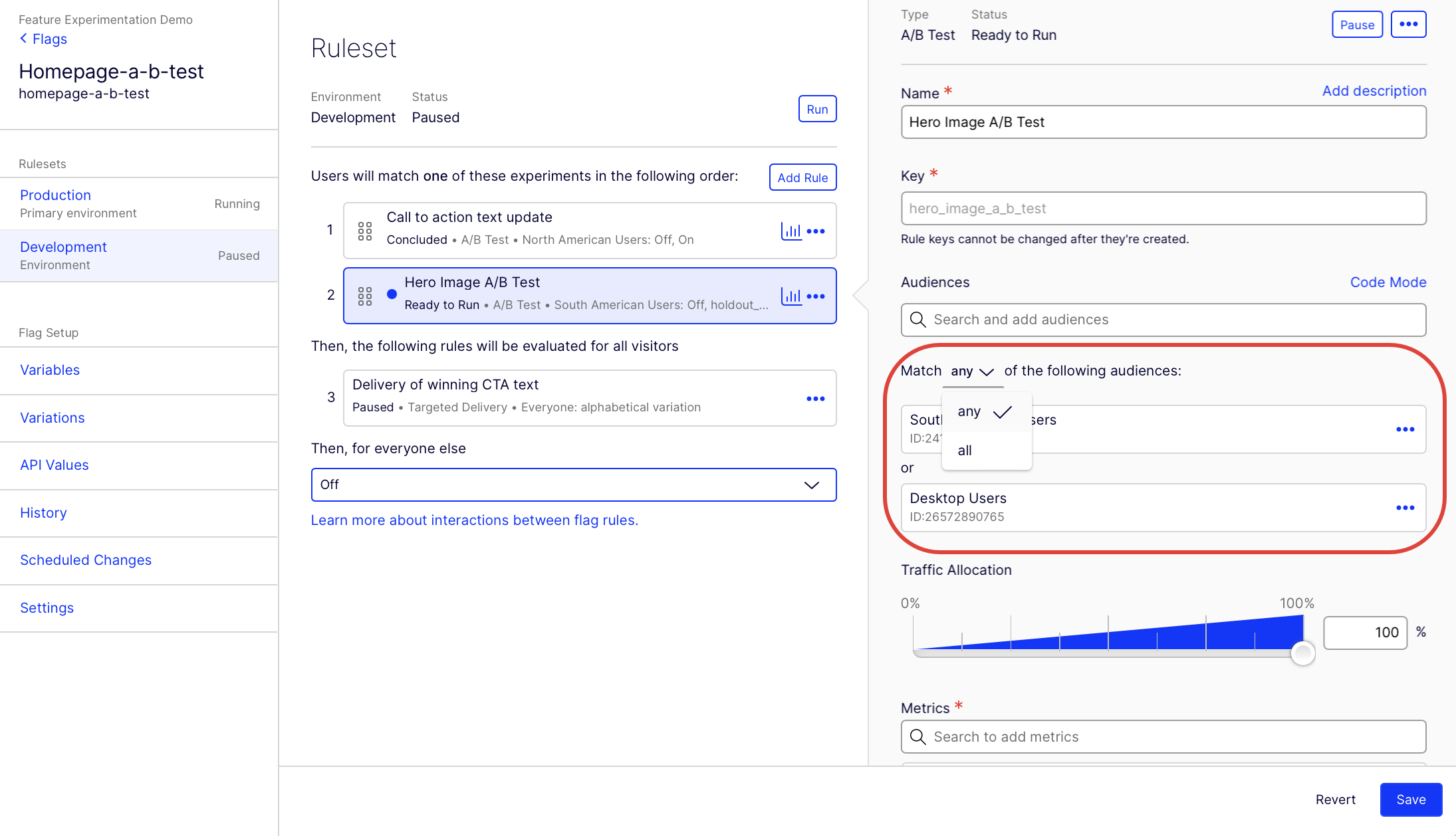
When adding your audience to a flag, you can use and or or operators (any or all) to create a combination of other audiences.
- From Flags, click or create a flag.
- Select or create a rule.
- Under Audiences, select an audience.
- Add another audience. Adding more than one audience per rule creates an audience combination.
- From the Match drop-down list, select any or all.
If you want to use more complex nested logical operators with and or not, you can do so in JSON in Code Mode. See Create advanced audience combinations.
Edit an audience
In Feature Experimentation, complete the following:
- Go to Audiences.
-
Click an audience you want to edit.
- Update the audience.
-
Click Save Audience.
If the audience is in use in a rule, Feature Experimentation displays a callout telling you how many rules are associated with the audience and warning you that updating the audience may change user targeting and influence experiment results.
Click the rule count to see a list of rules that use this audience.
Advanced audience information
Exclude audiences
You can use audiences to include users but not exclude them.
For example, you cannot exclude "all Desktop users" by setting traffic to 0% for that audience. This is because if you toggle off audience evaluation for Desktop users, they end up in the "Everyone" audience.
To exclude or blocklist audiences, define advanced audience combinations with not using Code Mode. See Create advanced audience combinations.
Overlapping audiences
If you define multiple overlapping audiences and multiple rules for a single flag, user evaluation order becomes complex. See Interactions between flag rules.
Nested logical operators
To use nested logical operators (and, or, not) use Code Mode to define the combination in JSON. Each audience is a rule like User likes salads, and an audience combination is a boolean combination of these rules, like User likes pizza NOT (User likes sandwiches AND User likes soup).
For information, see Create advanced audience combinations.
Article is closed for comments.