Specialized agents in Optimizely Opal are purpose-built AI agents you create that complete a single, well-defined task. Each agent can use targeted tools, adjustable reasoning, and defined inputs to finish its task accurately and efficiently. Specialized agents support two interaction modes: single-shot, where the agent runs once and returns a result, and multi-turn, where the agent stays active in Opal Chat for iterative follow-up.
To follow a step-by-step walkthrough that creates an example specialized agent, see Create an example single-turn specialized agent walkthrough or Create an example multi-turn specialized agent walkthrough.
Plan your specialized agent
Before creating a specialized agent in Optimizely Opal, understand how AI fits into your wider organization, define what kind of specialized agent you need, and plan how to build it.
Identify high-impact use cases
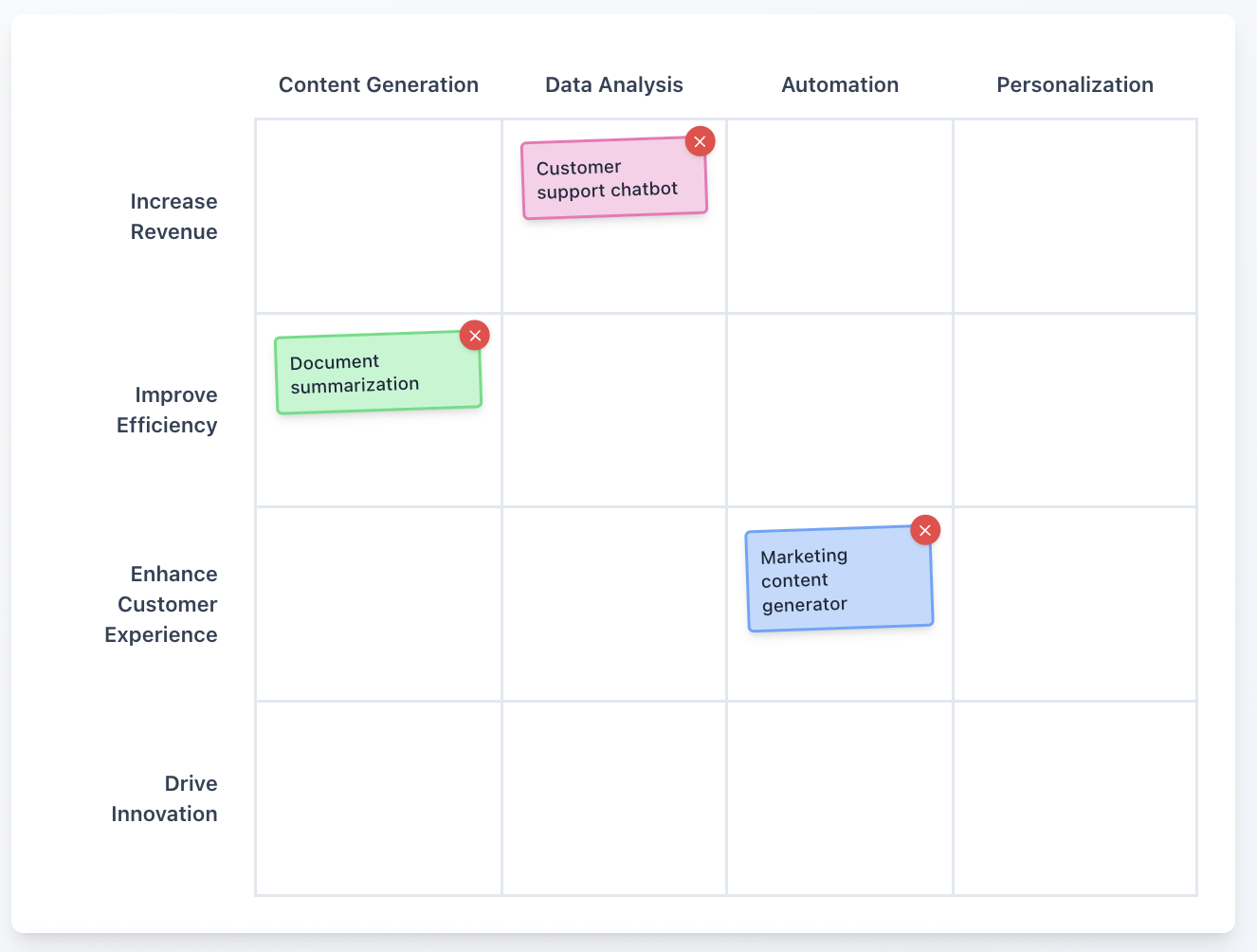
When developing a portfolio of high-impact use cases, gather input from multiple organizational perspectives. This includes top-down strategic direction from leadership and bottom-up practical insights from practitioners executing business-critical tasks. You can use a Creative Matrix framework to create an effective approach to collaboration.
Structure the matrix with AI capabilities along one axis and business-relevant categories along the other. Categories can include strategic objectives, departmental functions, or major initiatives. The following image is an example of a Creative Matrix:
Specialized agent scope
Avoid designing multi-functional specialized agents that execute complex sequential processes. Instead, decompose tasks into discrete, manageable components. Each component is an individual specialized agent that can then be orchestrated into larger workflows to fulfill more complex operational roles. See Workflow agents overview for information on linking multiple agents together to create a workflow agent.
If the specialized agent's function can be described with a single verb (for instance, "Summarize", "Scan", or "Translate"), it is appropriately scoped.
Specialized agent plan
Define the operational strategy your specialized agent executes. When creating your plan, consider the following questions:
- Data sources
- What external systems or platforms will the specialized agent need to access for information (for example, public websites, internal databases, third-party APIs)?
- What specific types of data will the agent retrieve (for instance, text content, numerical data, images, structured records, user input)?
- Will the agent use information from Optimizely products, such as recent experiments in Optimizely Web Experimentation or Optimizely Feature Experimentation, Content Marketing Platform (CMP) tasks, or Content Management System (CMS) content?
- What format is the input data in (raw HTML, JSON, CSV, plain text), and does it require any preprocessing or transformation by the agent?
- Are there any access restrictions, authentication requirements, or rate limits for these data sources that the agent must adhere to?
- Actions and outputs
- What specific actions will the specialized agent perform with the retrieved data (for instance, generate text, summarize content, analyze data, compare information, create reports)?
- Will the specialized agent initiate tasks or update records in other systems, such as creating CMP tasks, modifying CMS content, or sending emails?
- Will the agent execute specific queries, such as Optimizely Graph queries or other API calls, as part of its operation?
- What is the expected format and structure of the agent's final output (for example, plain text, Markdown, HTML, JSON, a specific file type)?
- How will the output be delivered or presented to the user (directly in chat, as a downloadable file, updated in an external system, or integrated into a canvas)?
- What is the primary purpose or desired outcome of the agent's output for the user or downstream processes?
- System integration
- Which specific Opal tools (system or custom) will the specialized agent need to interact with to perform its tasks?
- Are there any dependencies or a required sequence for how the specialized agent uses these tools or interacts with different systems?
- How will the specialized agent handle potential errors, timeouts, or unexpected responses when interacting with external systems or tools?
- What are the performance implications of the specialized agent's integrations, and how will it ensure efficient operation?
Specialized agents in the Opal ecosystem
Agents are like intelligent assistants within Opal. They use natural language prompts and tools to complete tasks on your behalf. Each agent has a specific purpose, whether that is generating content, analyzing data, or automating workflows.
Opal includes multiple types of agents: default, workflow, and specialized agents. Default agents are pre-built agents available in the Agent Directory. Workflow agents combine specialized agents to automate multi-step processes. See Agent overview for information.
Interaction modes
Specialized agents support two interaction modes. By default, agents use single-shot. Toggle Support multi-turn conversation on the agent details page to switch modes.
Single-shot
The agent takes your input, runs its tools, and delivers a final result in one pass. Single-shot is the standard for automated workflows and any task where no human follow-up is needed. Use single-shot for agents embedded in workflow agents where no human is present to provide follow-up.
Multi-turn
The agent stays active in Opal Chat after the first response, letting you give follow-up instructions and iterate on the output. Multi-turn is best when the "perfect" output requires refinement.
When to use multi-turn
- Content drafting – Ask for a blog post outline, then tell the agent to "write section two" based on that outline.
- Data exploration – Ask for a summary of campaign performance, then follow up with "break that down by region."
- Iterative review – Have an agent review a design, then ask it to "suggest three alternatives for the hero section."
What to expect in Opal Chat
When you invoke a multi-turn agent in Opal Chat (using the @ handle), the session stays active.
- Context awareness – The agent remembers previous inputs and its own previous responses.
- Refinement – You can give short follow-up instructions like "Make it punchier" or "Add a call to action."
- Ending the session – To switch tasks, click Done or open a new chat.
Agent details
The details section includes basic information about your specialized agent. Here, you give your agent a Name, Id, Description, and specify how users interact with your agent through Interaction Mode.
Input components
The input section defines the core functionality of the specialized agent. The components available depend on the interaction mode.
Single-shot agents include the following components: Prompt Template, Variables, Tools, Skills, LLM Provider, Inference Level, and Files.
Multi-turn agents include the same components as single-turn agents, but includes the Multi-turn Conversation Settings component.
Prompt template
The prompt template is where you add the directions to tell a specialized agent what it should do and how to respond to requests.
Keep the following in mind when crafting your prompt template:
- Highlight text and use the rich text editor to help structure the agent's understanding of your inputs.
- Specialized agents process natural language, so headings do not need to follow a rigid template across different agents.
- Employ cascading prompt logic. Write directions in top-down sequence so the agent can follow a linear flow without requiring backward references.
- Good – Collect inputs → Summarize → Produce output.
- Avoid – Multiple transitions between inputs and outputs.
When writing your prompt template, reference skills, variables, and tools. You can structure your prompt using any framework, including the CLEAR framework:
- Context – The Who, What, and Why of the task.
- Logic – The mental model and reasoning rules the agent should apply. This includes frameworks, constraints, sequencing, and strategic decision-making approaches.
- Examples – Illustrations of desired outputs and outputs to avoid.
- Action – The specific actions required to achieve the objective, including references to variables, tools, and any uploaded files.
- Result – The format specifications for the output and delivery method.
See Write prompts for specialized agents for syntax guidance and examples.
Multi-turn conversation settings
The System Prompt defines the agent's persona and behavioral guidelines. It supports variables and directives for dynamic instruction and customization.
The Memory Token Limit defines the maximum token count for the agent's conversation memory. This limit ensures the context window in Opal remains manageable by trimming older messages as the conversation grows.
| Memory Token Limit | Conversation turns | Context | Best for |
|---|---|---|---|
| Low | 5–10 turns | Simple task context (basic instructions and current state). | Straightforward, stateless queries such as lookup, calculation, or simple clarification loops. |
| Medium | 15–30 turns | Rich task context (detailed instructions, examples, and relevant documents). One to two supporting knowledge bases or reference materials. | Complex problem-solving requiring memory of earlier decisions, or multi-step reasoning. |
| High | 30+ turns | Full conversation history. Multiple documents, knowledge bases, or artifacts. | Deeply exploratory sessions, agents that refine outputs iteratively, or extensive reasoning chains. |
See Configure initial prompt and conversation settings for steps.
Skills
Skills are the foundational context, rules, and behavioral guidelines that shape how Opal creates output and tailors it to your unique needs. Skills were previously called Instructions. The feature works the same way.
A simple skill can include your company's brand guidelines, ensuring Opal generates on-brand content. Other common skills include details about your company's products and services, target personas, user journey funnel, term-bases, and so on.
Opal dynamically selects and applies skills based on their activation trigger criteria. This ensures Opal applies the most relevant guidelines and adapts its responses to the current context and your requirements.
Skills help your team produce on-brand content without manually specifying preferences in every prompt.
You can let Opal select skills automatically (based on the prompt or tools) or insert specific organization skills at exact points in your prompt using the picker in the editor. See the Skills section in the Create a specialized agent documentation.
See Skills overview for information.
Variables
Variables are placeholders for dynamic data such as user input, external system information, or configuration settings. They let your agent store and reference this data at runtime.
Keep the following in mind when adding variables:
- In your prompts, variables must be identified using double square brackets,
[[example]], and are case-sensitive. - In the variables section, click Add Variable and provide a concise name and a clear description.
- Variables are unique to each agent.
Example variables:
-
[[industry]]– Business sector classification, for example, technology, retail, or healthcare. -
[[test_idea]]– The concept or hypothesis provided by the user. -
[[url]]– Request the user to provide a URL for content review. -
[[email_addresses]]– Email addresses for report distribution.
When using ID variables with tools such as get_cmp_resource, you must specify the object type alongside the variable in your prompt template. Variables act as merge fields and are replaced with their raw values at runtime. Without the object type, Opal cannot resolve the correct resource.
-
Avoid –
Do this for [[id_variable]]resolves toDo this for 98743985784698596, which likely fails. -
Good –
Do this for Task: [[id_variable]]resolves toDo this for Task: 98743985784698596, giving Opal the context it needs.
See Define input variables for steps.
Tools
Tools let specialized agents execute specific functions. Examples include scanning URLs, uploading documents, updating CMS content, creating CMP tasks, and executing Optimizely Graph commands. Many tools are available by default in Opal. See System tools overview for a complete list. If your use case requires functionality not available, your organization can develop custom tools. See Custom tools overview.
Example tools:
-
browse_web– Concurrently browses multiple webpages and returns content. -
create_canvas– Creates an interactive AI canvas, a collaborative document you and Opal can edit in real time. -
send_email– Composes and sends emails as a notification tool.
Keep the following in mind when adding tools:
- In your prompts, tools must be identified using backticks,
`example`, and are not case-sensitive. - In the tools section, click Add Tool.
- Unlike variables, tools can be shared across multiple agents.
Specialized agents only use the tools you explicitly specify.
Inference level
The Inference Level setting controls how much reasoning Opal applies. Higher levels take more time but provide deeper reasoning and detail.
| Inference level | Best for | Response style | Example user prompt |
|---|---|---|---|
| Quick | Simple questions or tasks. | Fast, basic responses. | Give me a short headline variation for this landing page. |
| Standard | Everyday tasks. | Reliable answers. | Summarize this meeting transcript into five bullet points. |
| Balanced | Everyday tasks needing more reasoning. | Reliable answers with additional reasoning. | Analyze this transcript and identify three hidden risks to our project timeline. |
| Complex | Advanced planning and analysis. | Advanced reasoning and detail. | Build a step-by-step plan for A/B testing our checkout flow, including metrics to track and rollout strategy. |
| Pro | Toughest or most nuanced challenges. | Maximum reasoning depth. | Evaluate whether to run personalization or multivariate testing for our product recommendation carousel, taking into account traffic volume, statistical significance, and long-term revenue impact. |
| Code | Writes, explains, and debugs code. | Technical output (code or explanations). | Write a JavaScript snippet to trigger an Optimizely experiment on product detail pages when users scroll 50% down. |
Files
Upload any reference files your agent should access during execution, such as templates, guidelines, or reference documents.
See Add files for steps.
Output
The output section is where you set the expected output of the specialized agent. Set the Data Type, which specifies the format of the output after the agent executes, along with a Description that explains the expected output of the prompt.
See Configure output for steps.
Test, refine, and deploy
Test your agent
Use Test run on the agent details page to validate the specialized agent's functionality. When testing, enter any variables the agent requires for execution, such as URLs and email addresses. See Test a specialized agent.
Execute your agent at least five times with different inputs. It should produce consistent, high-quality results. If results vary significantly, proceed to the refinement phase.
After your agent goes live, the Quality tab provides automated quality scoring and runtime safeguards. Output Evaluation scores every run against criteria you define. Execution Guardrails detect runs that deviate from your agent's normal behavior. See Quality tab overview for details.
If the agent's performance is unsatisfactory, consider the following refinement approaches:
Output format refinement
If the response format does not meet your requirements (for example, plain text in chat when you need structured HTML), add specific guidance directing the agent to output in your desired format.
Example prompt: If you are unable to access the website listed in [[url]], immediately inform the user of the issue and stop the process instead of continuing.
If you are uncertain about achieving your desired output format, consult Opal directly:
- Copy and paste the agent's output into Opal Chat and ask Opal to convert it to your preferred format.
- When satisfied with the format or layout, ask Opal to remove the content and convert it into a template (for example,
.html) and save it to your computer. - Upload the
.htmltemplate file to your agent and reference it by name using backticks, just as you would reference a tool. - Conduct another Test Run to evaluate whether the agent's output meets your requirements.
Logic and consistency refinement
If results are inconsistent, consider the following:
- Add more specific constraints in the Prompt Template.
- Use if-then statements to handle multiple scenarios.
- Provide more detailed examples of desired outputs.
Accuracy refinement
If the agent produces inaccurate results, complete the following:
- Verify that all necessary tools are included.
- Ensure variables are clearly described.
- Add more context in the Prompt Template.
- Include specific examples of correct outputs.
Deploy
After testing confirms you are receiving high-quality outputs, deploy your agent.
- Document your agent – Add comprehensive descriptions so other users understand its purpose and capabilities.
- Activate and enable in chat – Configure your agent so it is activated and enabled in chat.
- Create usage guidelines – Document any specific input requirements or limitations.
- Monitor performance – Review outputs periodically to ensure continued quality after deployment.
- Iterate – Based on user feedback, continue refining the agent to improve its effectiveness.
Create a specialized agent
Now that you understand how specialized agents work, create one for your organization:
- Create an example single-turn specialized agent walkthrough
- Create an example multi-turn specialized agent walkthrough
- Create a specialized agent
If you use Opti ID, administrators can turn off generative AI in the Opti ID Admin Center. See Turn generative AI off across Optimizely applications.
Article is closed for comments.