In the Library in Optimizely Content Marketing Platform (CMP), you can generate public URLs for your assets, which lets you share them inside and outside the organization.
When you generate a URL, CMP provides a randomized GUID. To customize this, you can add a custom domain and edit the URL to make it more on-brand.
Generate a public URL
- Go to the Library.
- Select or upload an asset.
- Go to the Image Information tab for the asset.
- Click Generate Public Link.
- Click the Copy icon to copy the link, or follow the steps in Edit a public URL to customize the link.
Add or remove public links in bulk
Add or remove public links for several assets at once from the Library, rather than updating each asset individually.
To add or remove public links in bulk, complete the following:
Select two or more assets in the Library list or grid view.
-
Expand the Asset Information section on the side panel.
-
Complete one of the following under Public Link:
-
Click Add Public Link to generate public links. The number in parentheses shows how many selected assets do not yet have a public link. Links are added immediately, and a notification displays with the number of assets updated. If some assets are not updated, the notification displays how many succeeded and how many failed.
-
Click Remove Public Link to revoke public links. The number in parentheses shows how many selected assets have a public link. Click Yes, Remove in the confirmation window to confirm removal.
-
You can only select eligible assets. If an asset is ineligible, Add Public Link is disabled. If the selected assets do not have a public link, Remove Public Link is disabled.
Edit a public URL
- Go to the Library.
- Go to the Image Information tab for the asset.
- Click the Edit icon beside the public URL.
- Customize the URL as desired to make it on-brand and clean.
- Click the Checkmark icon to save it. You can edit the link again if needed.
Add query parameters
CMP lets you resize images by appending parameters to the image's public URL using ?.
You can use the following parameters:
- width – Defines the width of the image in pixels.
- height – Defines the height of the image in pixels.
-
action – Determines how the image should be resized or manipulated to fit the target width and height.
- Crop – Resizes the image while maintaining aspect ratio to fill the dimensions, then crops any excess. Cropping is centered based on center_width and center_height.
- Padding – Resizes the image while maintaining aspect ratio to fit within the dimensions, then adds padding if the aspect ratios do not match. The padding color is determined by the color parameter.
- Border – Does not resize the image initially and places the original image centered within a canvas of the specified width and height. If the dimensions are smaller than the original image, it crops the image; if larger, it adds a border. The border color is determined by the color parameter.
- color – Specifies the background color to use for padding or borders. Accepts hexadecimal color code (like FF0000 for red or 000000 for black). It can also be the string “transparent” for transparent padding if the file format supports it.
- center_width – Specifies the horizontal focal point for cropping as a percentage (0-100) of the image width. 0 is the left edge, and 100 is the right edge.
- center_height – Specifies the vertical focal point for cropping as a percentage (0-100) of the image height. 0 is the top edge, and 100 is the bottom edge.
- crop_x – Specifies the X coordinate of the crop region's top-left corner in pixels.
- crop_y – Specifies the Y coordinate of the crop region's top-left corner in pixels.
- crop_width – Specifies the width of the crop region in pixels.
- crop_height – Specifies the height of the crop region in pixels.
Examples
The original image is 1732 x 1155 with the following link: https://images3.cmp.optimizely.com/assets/Smile.jpg/Zz1kYWRhZjhhZTc4MjQxMWYwYjE1YzA2MTJlODM2ZDRiNg==
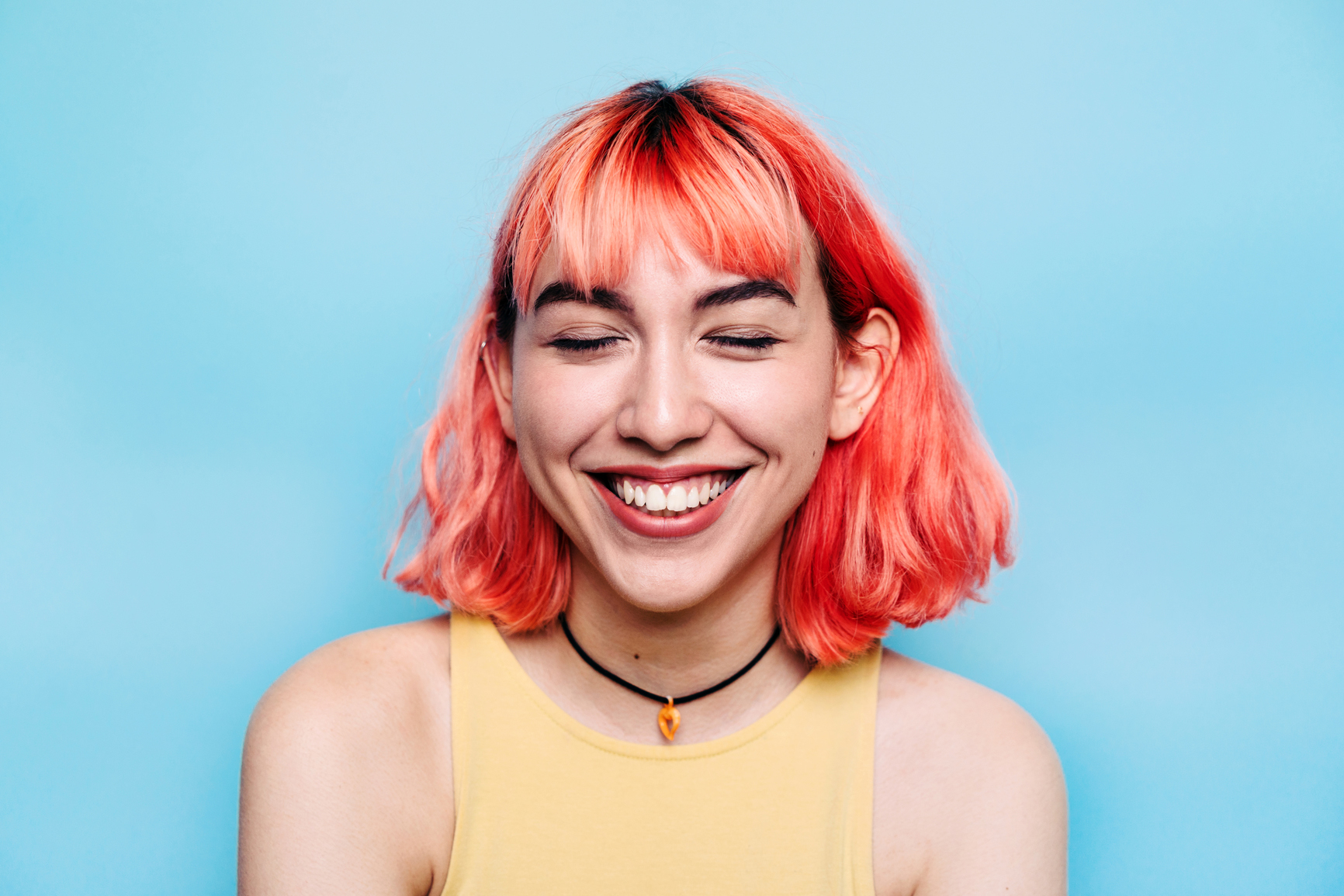
You can resize and crop the image to 1000 x 500 by using width, height, and center_height.
?width=1000&height=500¢er_height=45
You can use the following parameters to crop to selection:
- crop_x = 500
- crop_y = 100
- crop_width = 750
- crop_height = 750
This would be the URL: https://images3.cmp.optimizely.com/assets/Smile.jpg/Zz1kYWRhZjhhZTc4MjQxMWYwYjE1YzA2MTJlODM2ZDRiNg==?crop_x=500&crop_y=100&crop_width=750&crop_height=750.

Pairing this with a width and a height performs the crop and the rescale in series. Using the same crop image, you can add width=500.

Please sign in to leave a comment.